Laptop Workstations
BYOD "Bring your own Device"
The Faculty of Human Sciences offers several workstations where you can use your own laptops. These modern workstations enable flexible working in a productive environment.
Technical RequirementsTo use these workstations, you need a laptop with a USB-C or Thunderbolt port that supports DisplayPort ("DisplayPort Alt Mode"). Only USB-C ports with DisplayPort Alt Mode support video output to the monitors at the laptop workstations. Older devices without DisplayPort Alt Mode may charge via USB-C but cannot connect to the monitor. How do I know if my device supports DisplayPort Alt Mode?DisplayPort Alt Mode has been available since around 2015 and is typically supported on:
Often lacking in:
How to identify: Look for a DisplayPort symbol next to the USB-C port or check your device's specs for "USB-C with DisplayPort Alt Mode" or "USB-C with video output". |
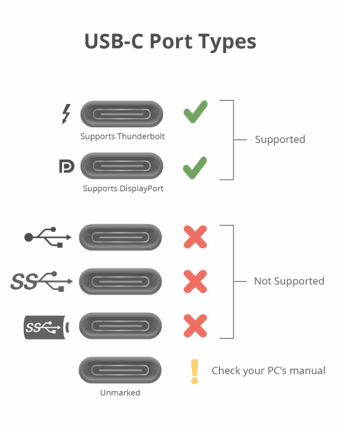
Click to enlarge
The symbols indicate which USB-C ports support DisplayPort Alt Mode |
Equipment
Each workstation provides a large monitor, ergonomic mouse, keyboard, and 90-watt power supply.
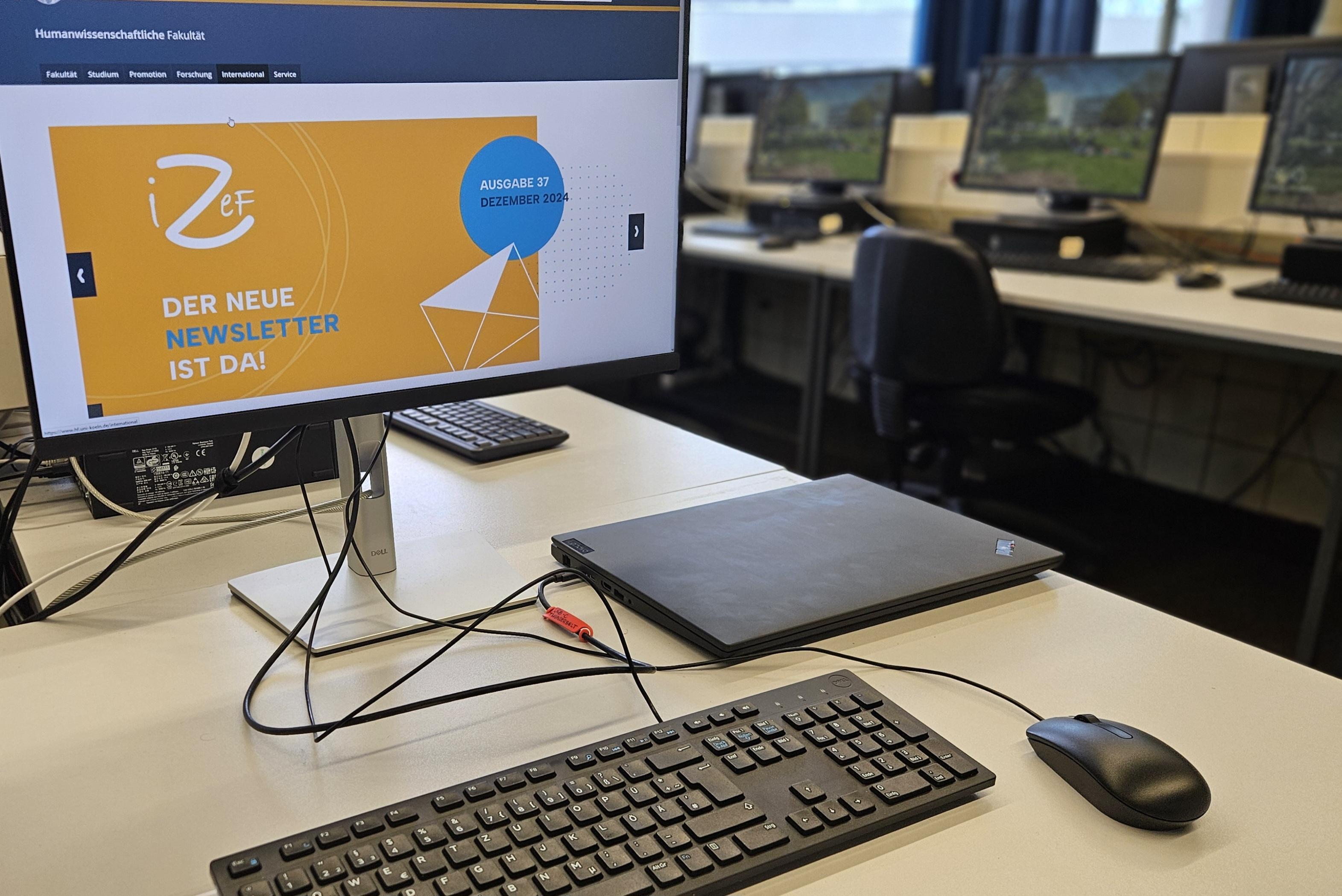
Laptop workstation in Building 216, PC Pool R.2119B
Usage Instructions
Step-by-step guide:
- Connect the USB-C/Thunderbolt cable to your device
- Wait for automatic connection to power and, if supported, mouse, keyboard, and monitor
- Check whether the screen displays correctly and the laptop is charging
FAQ – Frequently Asked Questions
I see no image on the monitor, only on my laptop. What can I do?
Check whether your device supports DisplayPort Alt Mode (see above). Try activating the external screen using Windows + P. Mac or Android users should refer to the device manual for display output settings.
I have no network connection
Try connecting to the university's Wi-Fi (e.g., eduroam). High traffic from students and staff may cause roaming issues between access points and temporary interruptions.
Can I use my laptop while it's closed?
Yes, depending on your device, operating system, and power settings, using your laptop in clamshell mode is possible to save desk space.
I cannot access certain university services. Why?
After logging into eduroam, you might still lack access to internal university services (e.g., library systems, journals). For full access, connect via VPN using the Cisco client provided by the university IT center (RRZK).
Mouse and keyboard do not work, but power and screen do. Why?
Some older USB-C ports do not support data transmission to peripherals via the monitor's USB hub. In such cases, you may need to connect your own mouse and keyboard directly to your laptop.
The monitor stays black, although my laptop charges. What should I do?
This often means your USB-C port does not support DisplayPort Alt Mode. Power delivery alone does not guarantee video output. Refer to your device specifications or contact support.
Can I connect my smartphone or tablet?
Samsung devices: Yes. Samsung smartphones with DeX (from Galaxy S8, Note 8, Tab S4 onward) support external display via USB-C. DeX launches automatically when connected.
Apple devices: iPhones (Lightning/USB-C) do not support extended displays like DeX. iPads with USB-C (e.g., iPad Pro, iPad Air, iPad mini) can use external monitors with limited functionality.
Other Android devices: Some models support DisplayPort Alt Mode but feature availability varies.
Note: Not all laptop workstation features are available when using mobile devices.
When you connect your laptop, the following will be available:
- 90W power supply (your laptop charges while connected)
- Mouse and keyboard (depending on your USB-C port's capabilities)
- 24" Full HD 16:9 external monitor (only if DisplayPort Alt Mode is supported)
|
Important: Please do not change any wiring. For technical issues, contact the support staff. |
Network access is provided via Wi-Fi only. No LAN connection is available from the monitor hub.
Locations and Availability
Laptop workstations are available in the following PC labs at the faculty:
| Location | Room | Total Workstations | Laptop Workstations |
|---|---|---|---|
| Gronewaldstraße 2 | R.2119A (Click for details) | 15 workstations | 3 laptop workstations |
| Gronewaldstraße 2 | R.2119B (Click for details) | 44 workstations | 4 laptop workstations |
| Frangenheimstraße 4 | M01A (Click for details) | 25 workstations | 2 laptop workstations |
Please note: Rooms are not available during teaching or scheduled events.
For questions, feel free to contact computerpools.hf@uni-koeln.de