Before the meeting
| Schedule a meeting |
In your settings under Meetings > Schedule a Meeting, you can schedule one-time or recurring weekly meetings. Here, you can add a topic and description to a meeting, as well as set the date, duration, or any recurring options.
|
| Meeting Password (required)
|
Under Meetings > Schedule a Meeting, you can set a password that students need to join. This option is automatically enabled for faculty at the University of Cologne. |
| Audio | Participants should be able to join using their computer or smartphone, which is why the "Both" setting should be enabled under Meetings > Schedule a Meeting > Audio. |
| Meeting Options | It is recommended to mute participants upon entry to avoid background noise (checkbox 2 in the screenshot).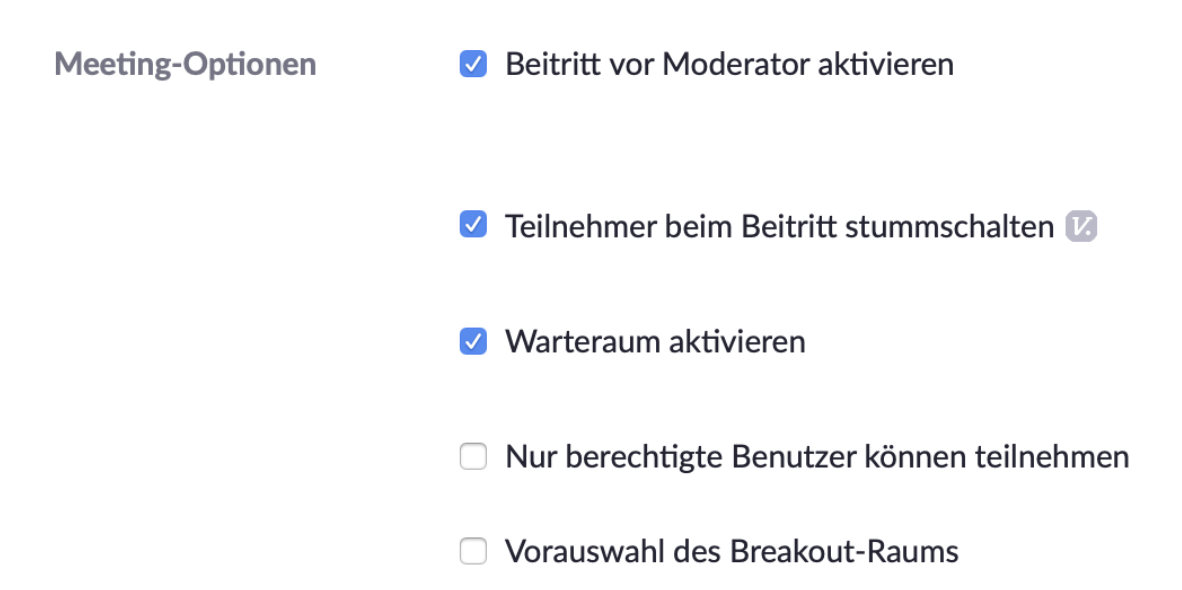 |
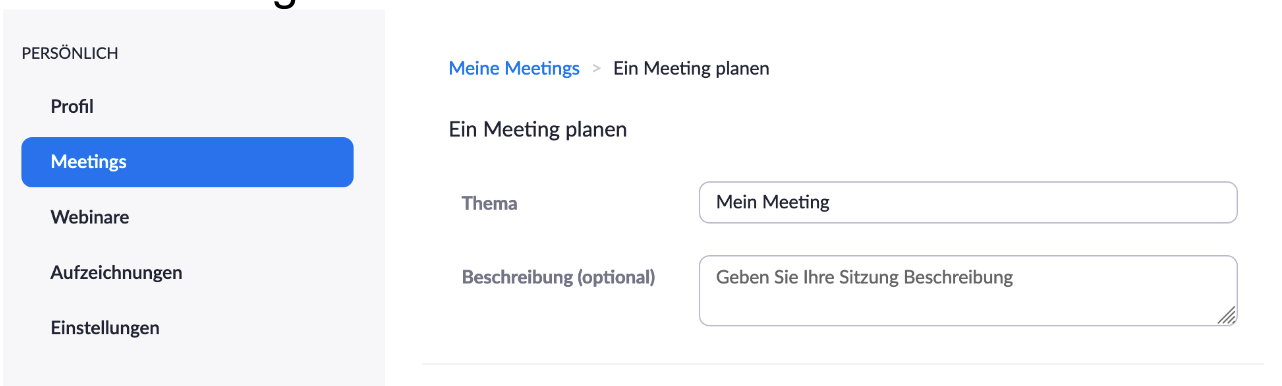
In the following section, you will find a list of options that can be configured before the meeting starts.
| Waiting Room | When this option is enabled, participants are directed to a waiting room if the host has not yet started the session. In this room, only the host can send a message to everyone in the waiting room. Once the host joins the meeting, they can admit participants individually or in groups..png) |
| Breakout Room |
A breakout room (Settings > In Meeting (Basics) > Breakout Room) provides the option for group work and can be set up by the host. During the meeting, the host can then divide participants into individual virtual "rooms" where they can discuss topics. Under Meetings > Schedule a Meeting, you can also preselect the breakout room (see Screenshot 2). 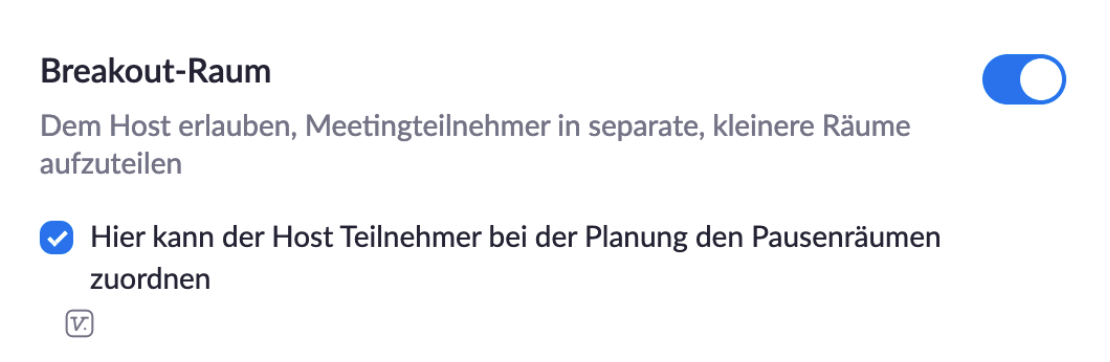 
|
|
Whiteboard |
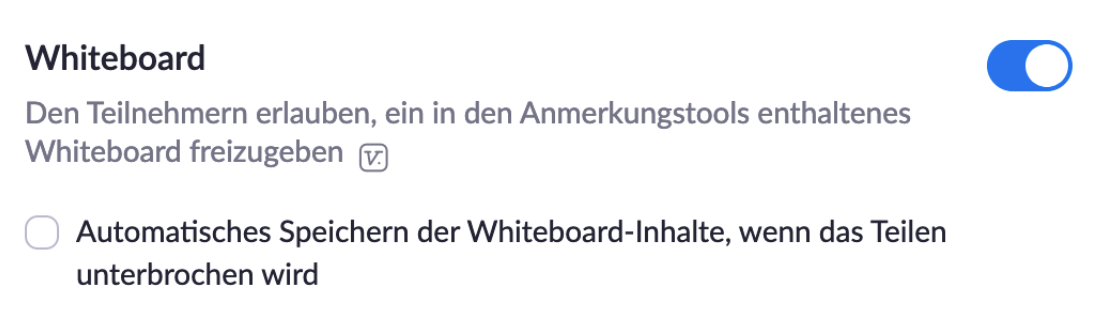
During a meeting, you can use a whiteboard for notes or similar purposes. You can enable this option under Settings > In Meeting (Basics) > Whiteboard. This can be activated during the meeting under Share Screen and saved locally for potential future use. |
| Chat |
The chat is enabled and cannot be disabled by UzK instructors. Here, you can communicate with participants or share documents. Saving the chat cannot be prevented due to UzK default settings.
|
| Feedback without Words |
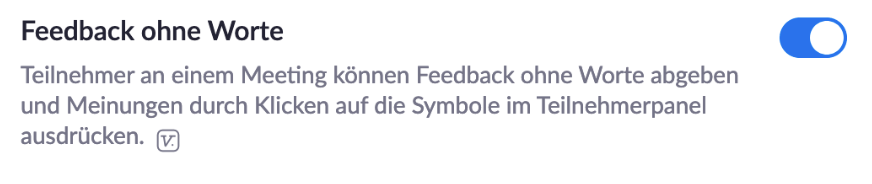
To avoid multiple people speaking at the same time as much as possible, the “Feedback without Words” feature can be enabled. This allows participants to provide nonverbal feedback in the form of symbols that appear next to their names in the participant list.
|
| Poll | The host can launch polls during the meeting and show the results to participants immediately after the poll ends. To use this feature, it must first be enabled via the website. Questions can be created in the app during the meeting (see “During the Meeting”) or on the website when planning the meeting. |
| Recording | Meetings can generally be recorded. Participants are asked for permission before recording begins. This setting cannot be changed by UzK instructors. |

 The view for participants during the meeting.