Zoom - Key Settings for Educators
There are several settings that should definitely be configured before starting your first Zoom session, known as a meeting. It is important to define all relevant settings before a meeting begins, as you can only make limited adjustments during the meeting. To apply changes to the settings, you must start a new meeting.
Most of the following settings can be found on the Zoom website. To access them, visit the following URL: https://zoom.us/profile/setting.
You also have the option to participate in live training sessions offered by Zoom or view recordings of past training sessions: https://support.zoom.us/hc/de/articles/360029527911 (under Zoom Meetings Training (German) > View recordings of previous training sessions).
Zoom now offers a wide range of options, which are divided into three categories—Meeting, Recording, and Phone—in the settings menu (see screenshot). Category 1 is the most relevant here, so the following instructions assume that the settings described should be configured in Category 1. If settings need to be configured in a different category, this will be explicitly noted here.

| Participants should be able to join a meeting via their browser
|
Under Settings > In Meeting (Advanced), enable the "Join from your browser" option to allow participants to use their browser for the Zoom meeting. This means that installing the Zoom app is no longer required for all participants.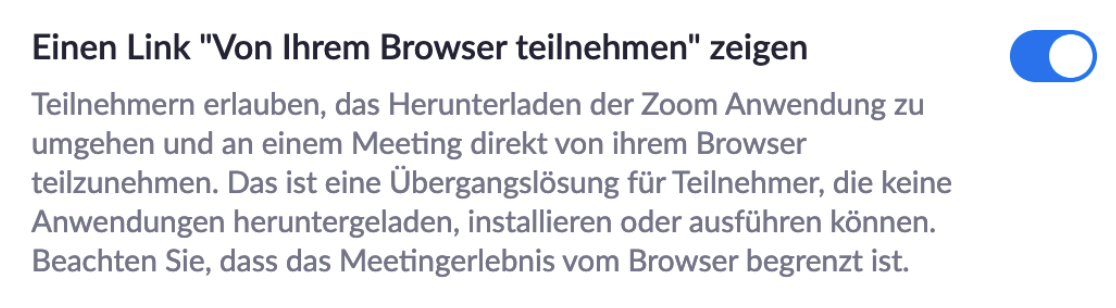 |
| Disable the use of the personal meeting ID
|
For security reasons, this option should be disabled under Settings > Schedule a Meeting, as this helps prevent so-called "Zoom bombing." Background: Your personal meeting ID does not change. Once this ID is shared, users can dial into it repeatedly and potentially join without authorization.
|
| Mute participants
|
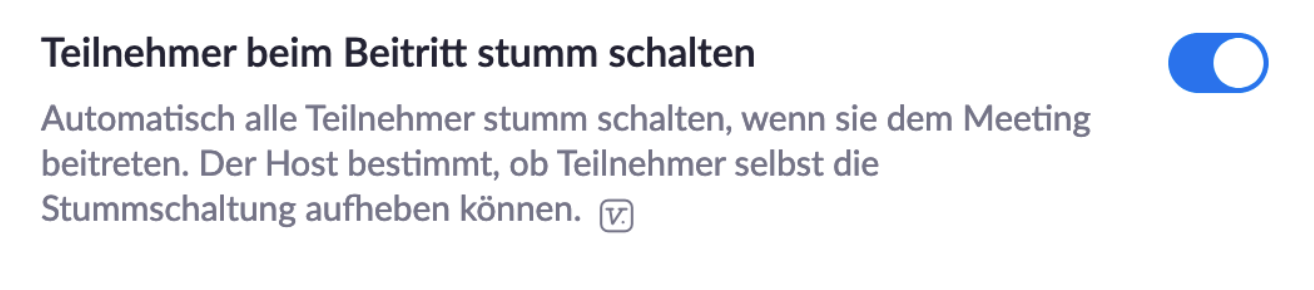
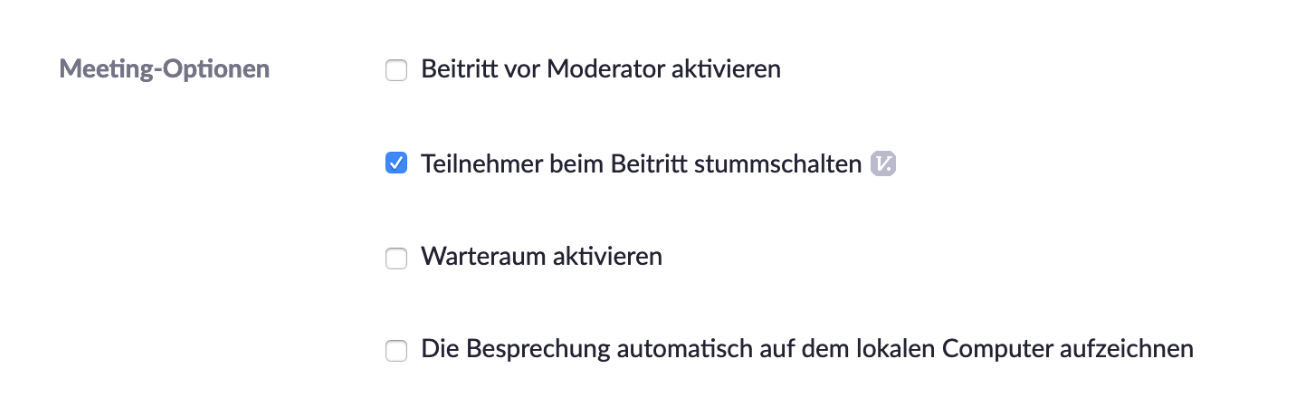
Participants should join the meeting on mute and only unmute their microphones when speaking to reduce background noise. This setting can be configured in two places: globally for every meeting or when creating a meeting. Global setting (when scheduling a meeting):
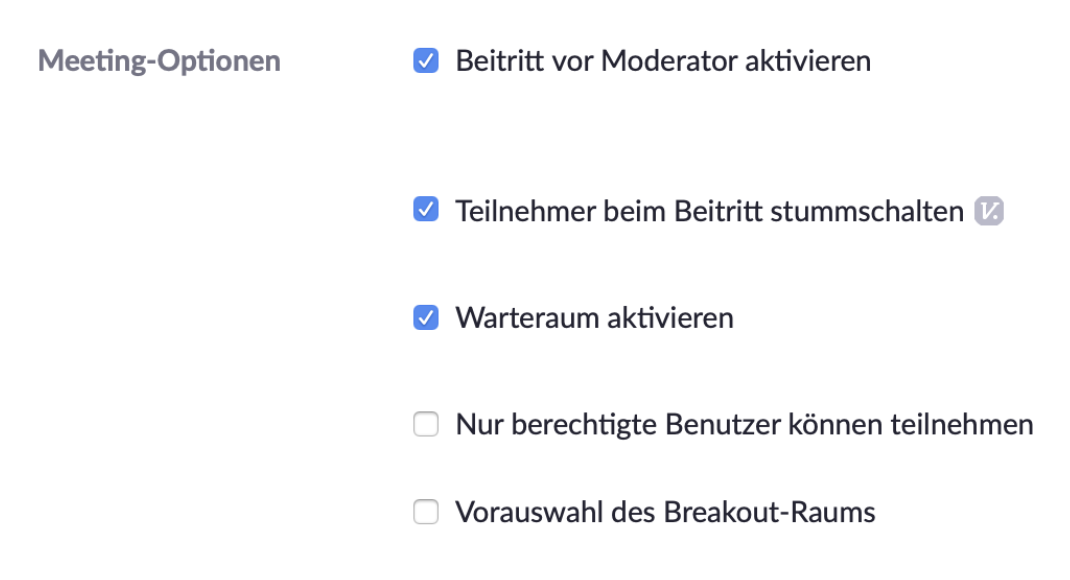
When scheduling a meeting:
|
| Registration should not be a prerequisite for participation
|
This setting is defined individually for each meeting (checkbox 4 in the screenshot) and cannot be set globally.
|
| Screen sharing only for the host |
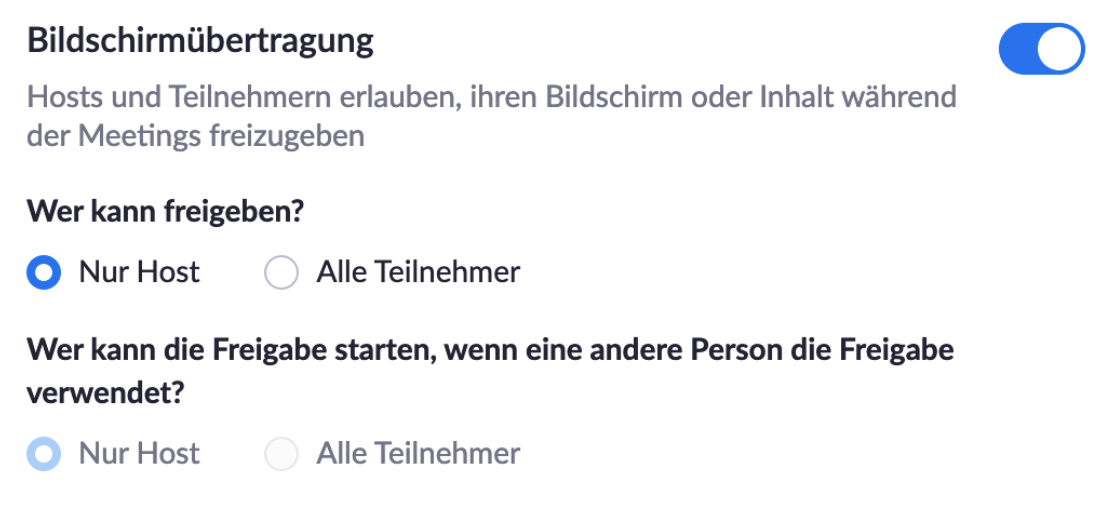
It is recommended that only the host be permitted to share their screen (Settings > In Meeting (Basics)). Participants should only be granted sharing permission at the host’s request. Note: Since version 4.6.11, this setting can also be changed in the app during the meeting. |