A good photo
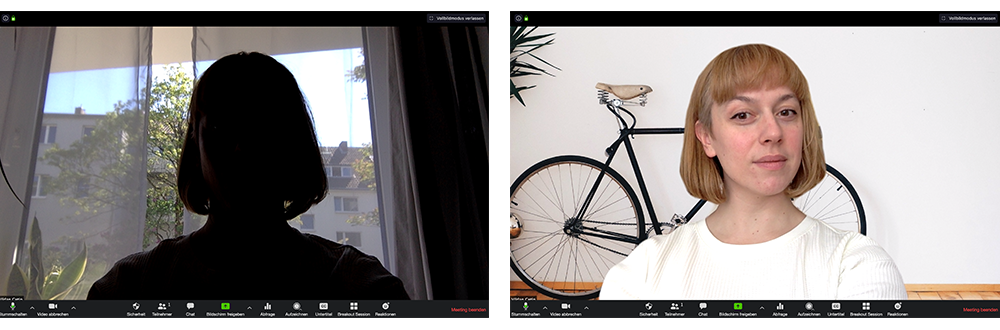
| Light source / Avoid backlighting |
To ensure better lighting and avoid a blue tint, don’t rely solely on your computer as a light source. Ample lighting helps reduce signal noise. Position the camera so that light always comes from the direction of the camera and avoid direct light shining into the camera. At the same time, it is beneficial to position a soft, controlled light source behind the camera or at an angle from the front, which illuminates your face without causing glare. This can be a desk lamp or natural daylight coming through a window. To experiment: If interested, you can also add a so-called "key light" positioned diagonally behind your back, to the side, and at a height above head level, so that your head is illuminated from this angle. This can create a stronger separation between your image and the background.
|
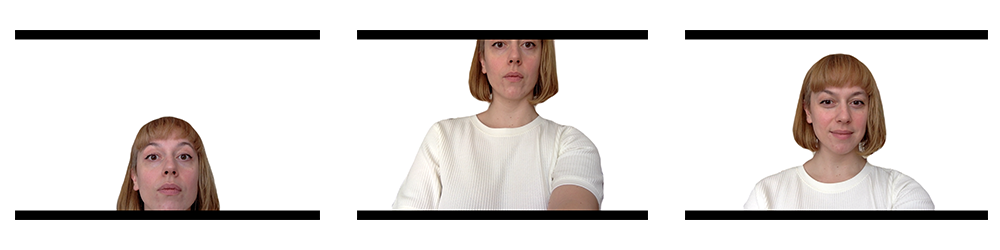
| Communicate at eye level |
Try to position the camera at eye level if possible. It may be helpful to place your laptop on a raised surface. Position yourself within the frame so that your eyes are in the upper third of the image.
|
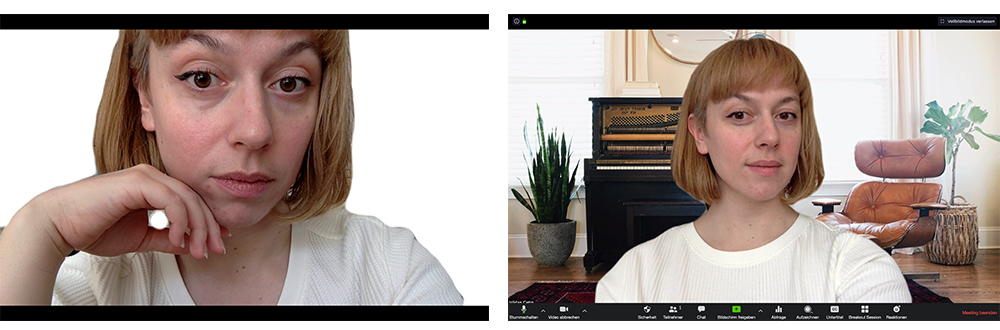
| Distance from the camera |
Don’t sit too close to the camera. A little distance (about 1.5 m) allows for some body language.
|
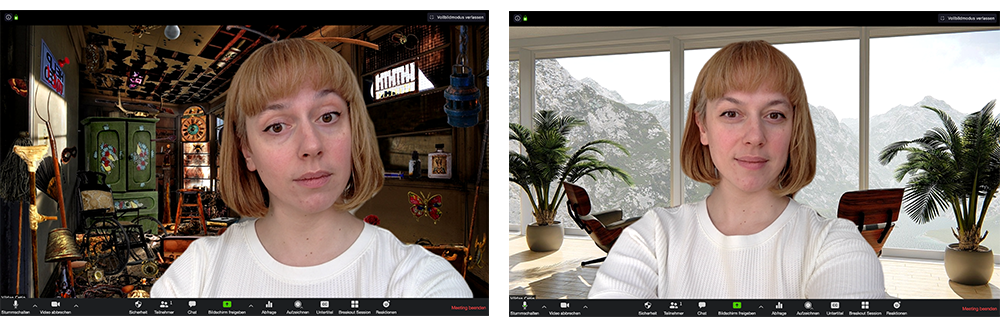
| Background |
Make sure your background is as neutral and “tidy” as possible. For example, sit in front of a relatively empty wall. Zoom also offers the option to insert a virtual background. This allows you to hide your real background and protect your private space from unwanted eyes. The simpler your background is in the real room (e.g., a solid-colored wall), the better the virtual background effect works in Zoom. To use the virtual background even more effectively and avoid image errors, you can also position a “green cloth” behind you to fill the screen and simultaneously activate the “Green Screen” effect in the Zoom menu under “Virtual Background.” This technique for cutting out the background is also used, for example, by major broadcasters and in our OneButtonRecordingStudio (OBRS) at Netzwerk Medien; see here. |
| Clothing | It’s best to wear solid-colored, muted clothing rather than patterned items. Checkered and striped patterns, in particular, can cause flickering. |
Good sound
| Close to the Microphone | The closer you are to the microphone, the more clearly your voice will be heard by other participants. The larger the room you are in, the more relevant this advice becomes. If you have headphones with a built-in microphone (included with most smartphones), it is recommended that you test them. |
| Clothing and microphones | On some wired headphones, the microphone is located directly on the cable. Make sure you’re not wearing any clothing that could cause background noise (zippers, scarves, etc.). |
| Echo Cancellation | If you’re using a headset, it may support the echo cancellation feature. This minimizes echoes and background noise. |
| Room Acoustics | Room acoustics depend, among other things, on the size of the room. The larger the room, the poorer the acoustics. Similarly, room furnishings such as carpets or curtains can improve room acoustics. |
| Background Noise | Make sure to minimize background noise—such as from open windows, cell phones, or similar sources—before the meeting. |
| Mute your microphone when not in use | Mute your microphone during pauses in speech to prevent ambient noise from being heard by everyone in the meeting. |