Before the meeting
| You don’t need to download the Zoom app |
If you want to join a meeting, you can do so either via the Zoom app or your browser.
If the "Join via your browser" link does not appear, the host has not enabled this feature. In that case, you must use the app. |
| Using a Virtual Background | If the host has enabled the virtual background settings, participants can use their own image or download the package provided by Zoom. You can find background images provided by the Media Network at https://www.hf.uni-koeln.de/41109.
A selection can be found in the app’s account settings. As a licensed user, you will also find several UzK backgrounds already listed. |
| Joining via Phone | If, for example, you do not have a working internet connection, you can also join a Zoom meeting by dialing in. To do so, dial the number provided and then enter the meeting ID and participant ID. |

During the meeting
Depending on the instructor’s settings, various features may be available during a meeting. However, instructors do not always make all features available, so the features provided may vary from meeting to meeting.
Some features enable nonverbal communication during a meeting:
| Waiting Room | If this feature is enabled, participants are placed in a waiting room if the host has not yet approved their entry into the session. Only the host can send a message in this room. Once the host joins, they must admit participants to the meeting one by one. |
| Raise Hand | During the meeting, you can raise your hand to signal to all participants that you would like to speak. To access this feature, the participant view must be enabled (click on "Participants" at the bottom among the icons).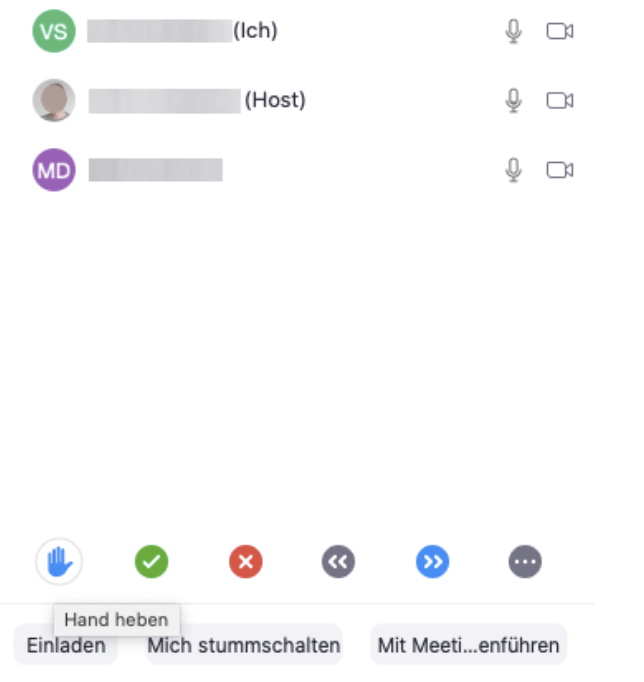 |
| Non-verbal feedback |
If the host has enabled the "Feedback without words" feature, the following icons will appear next to the "Raise hand" icon. These allow you to give nonverbal feedback to the speaker. To access this feature, the participant view must be enabled (click on "Participants" at the bottom of the icons). |
| Poll | The host can start polls during the meeting and show the results to participants immediately after the poll ends. |
| Screen sharing | During a meeting, you can share your screen with other participants. This requires the host’s permission. 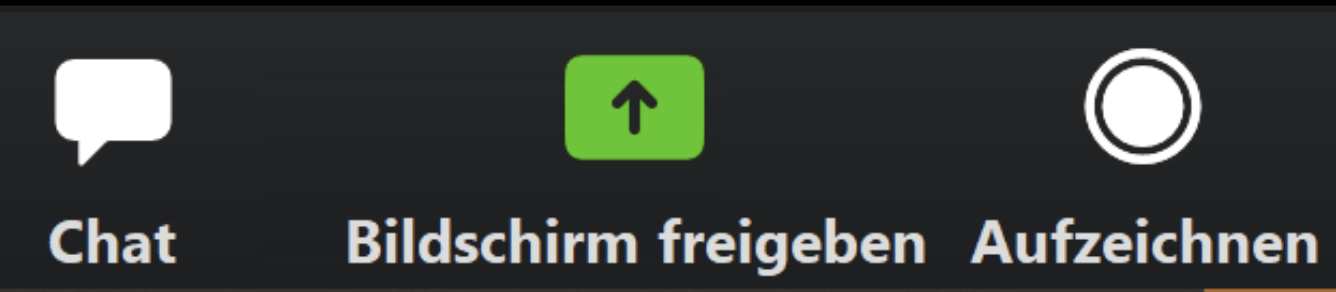 |
| Breakout Room | A breakout room provides an opportunity for group work and can only be set up by the host. During the meeting, the host can then divide participants into individual “rooms.” |
| Ask for help | If you are in a breakout room, you can ask for help. The host will then be notified, can join the room, and assist you. |
| Chat | Here you can chat with participants or share documents. |
| View | You can adjust the view of the other participants. Either the person currently speaking is always displayed in a larger window (Speaker View), or all participants are displayed side by side in equal-sized windows (Gallery View). To switch the view, click on “Speaker View”/”Gallery View” |
