

Step-by-Step Guide: How to Use Whisper
The process is fully automated and requires no prior technical knowledge.
Step 1: Prepare Your Files
Upload your audio or video files (MP3, MP4, WAV, M4A) in advance to the folder Whisper_Transkripte on your SOFS drive in advance. There are two ways to do this:
- From home via VPN or from a laptop via eduroam—connect to your private SOFS drive (server name: sofs1.uni-koeln.de, then enter your username and navigate to the Whisper_Transcripts folder). You can find connection instructions at the ITCC.
- Alternatively, you can also copy the files directly from a cloud service of your choice (e.g., sciebo) to the folder
S:Whisper_Transkripte.
Your SOFS drive is GDPR-compliant and accessible only to you personally. USB drives are not available on the pool PCs.
Continue to Step 2 →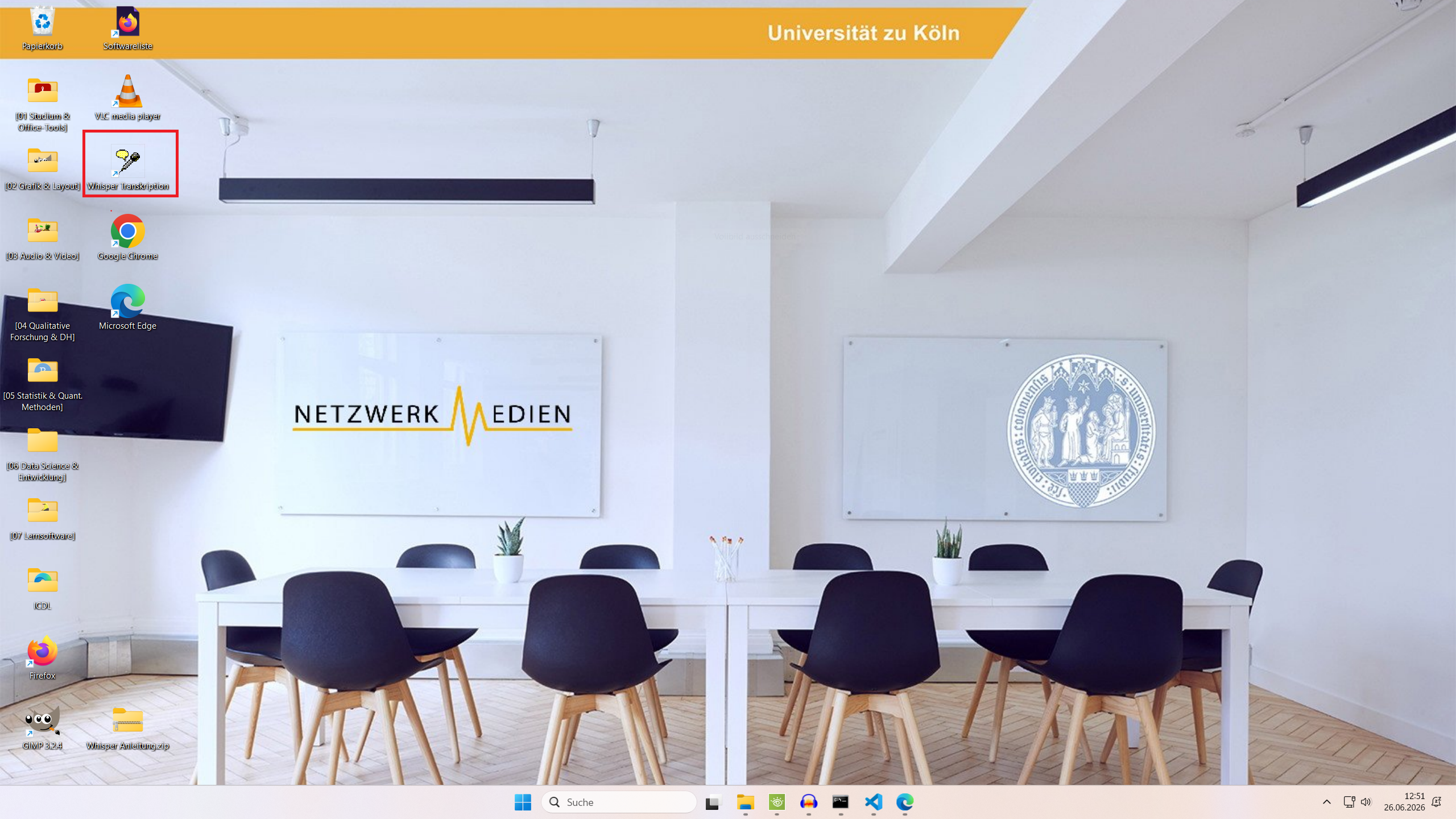
Step 2: Start the program
On the pool PC, launch the “Whisper Transcription” program by clicking the microphone icon on the desktop.
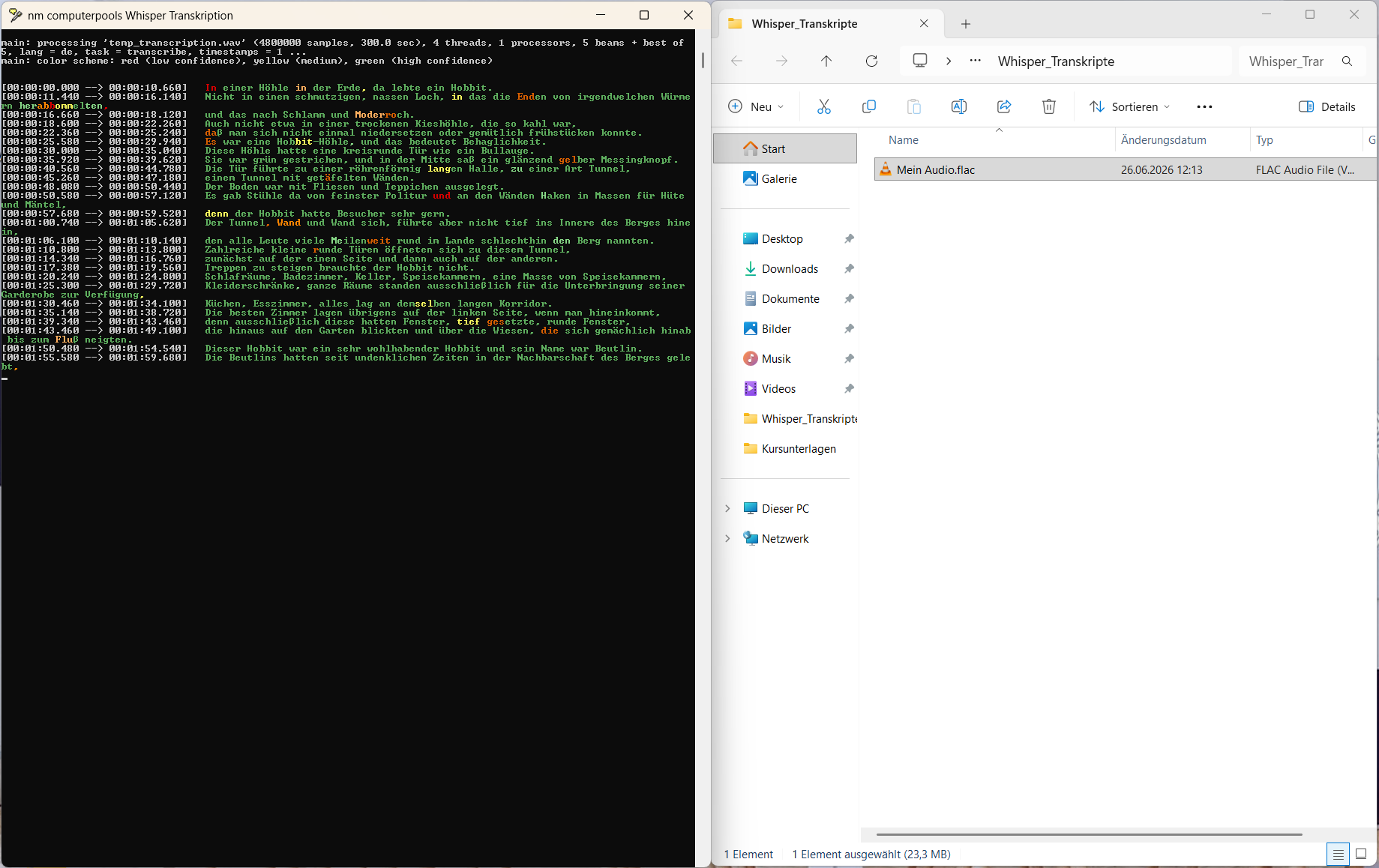
A black information window will open, and your personal folder will open automatically S:Whisper_Transkripte. Whisper automatically recognizes the files you have prepared. To confirm, type the word “YES” and press the Enter key.
Step 3: Transcription in Progress
The AI will now automatically process all media files in the folder. Color codes (green, yellow, red) indicate during the live preview how confident the AI is in its word recognition.
Continue to Step 4 →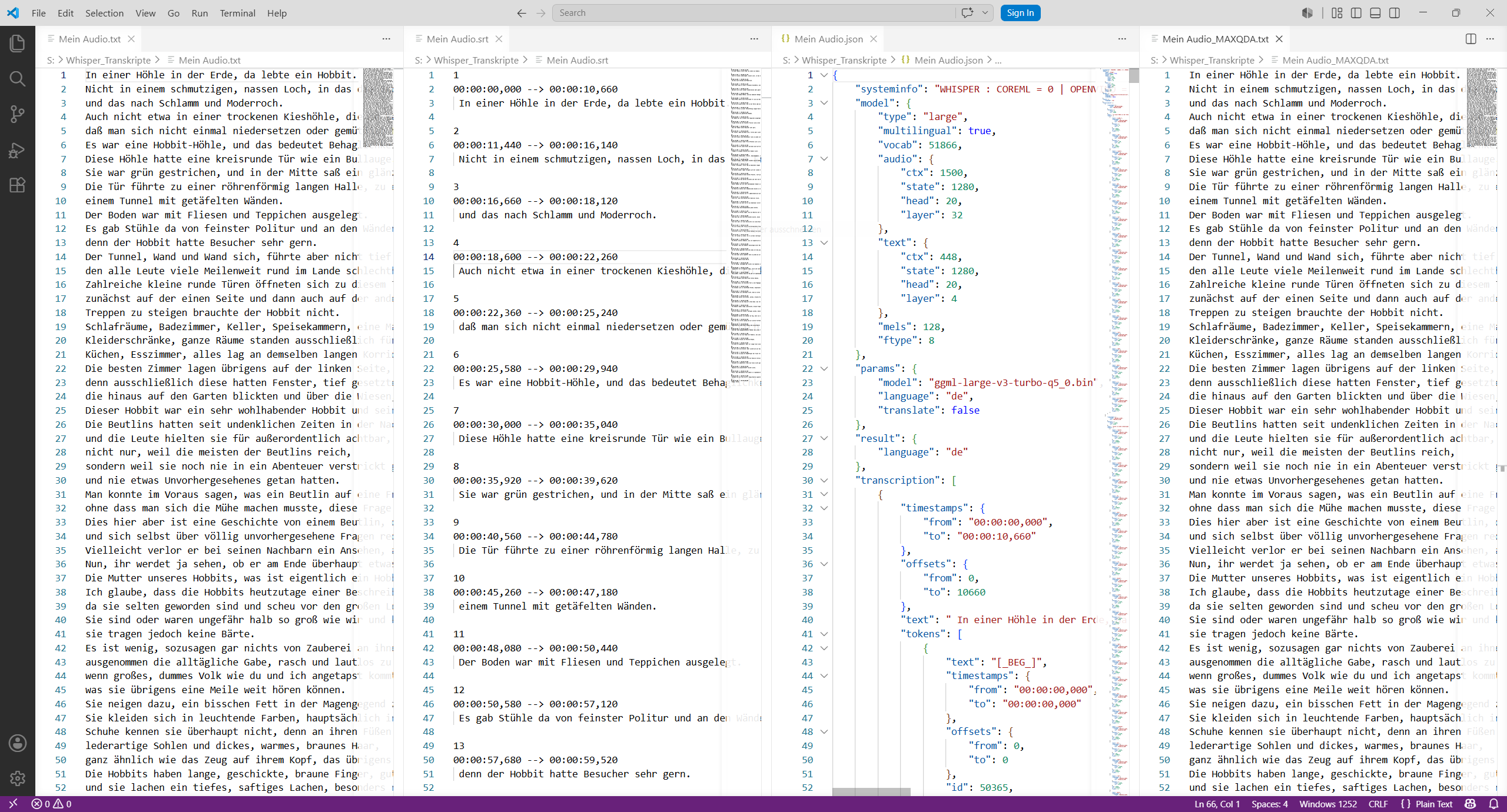
Step 4: Retrieve Results
As soon as the process is complete, a green success message will appear. You’ll now find the finished transcripts on your network drive next to your original audio file.
The system automatically generates multiple formats for your further work:
- .txt (plain text document)
- .json (For structured data analysis)
- .srt (subtitle file for videos)
- _MAXQDA.txt (Directly optimized for MAXQDA import)
Tip for working from home:
The finished transcripts are stored on your SOFS drive and can therefore also be accessed from home via VPN—you do not need to save the results on-site.
To do this, connect to the server sofs1.uni-koeln.de (your username, folder Whisper_Transkripte). The ITCC guide for the SOFS connection describes the exact setup process.