OBRS – One Button Recording Studio
*** PLEASE NOTE THE CURRENT GUIDELINES FOR STUDIO USE ***
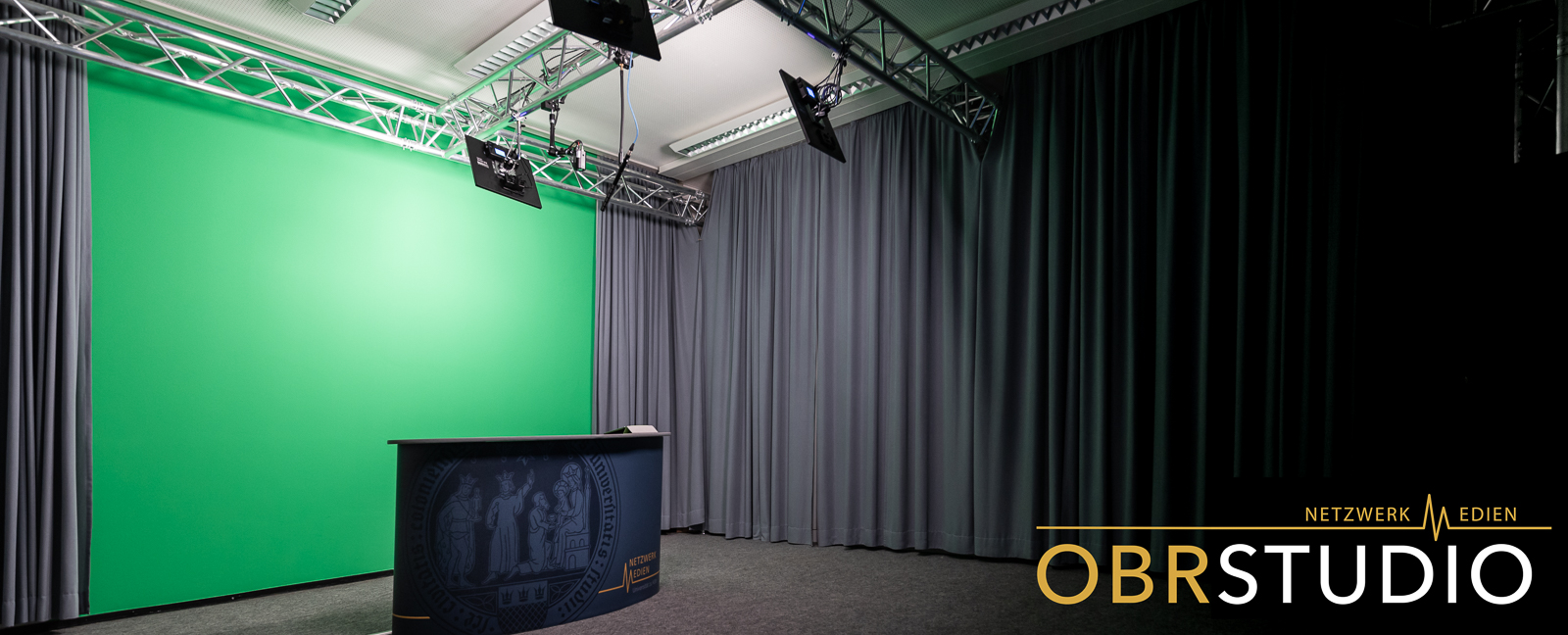
The One Button Recording Studio (OBRS) is a fully automated film studio that enables university staff to independently produce instructional videos, interviews, or digital lectures. The studio’s design ensures straightforward operation without requiring any prior technical knowledge, as all technical components are fully automated.
The OBRS offers a wide range of usage scenarios. In addition to a standard headshot view, the content from your own laptop, tablet, or document camera can be integrated upon request.
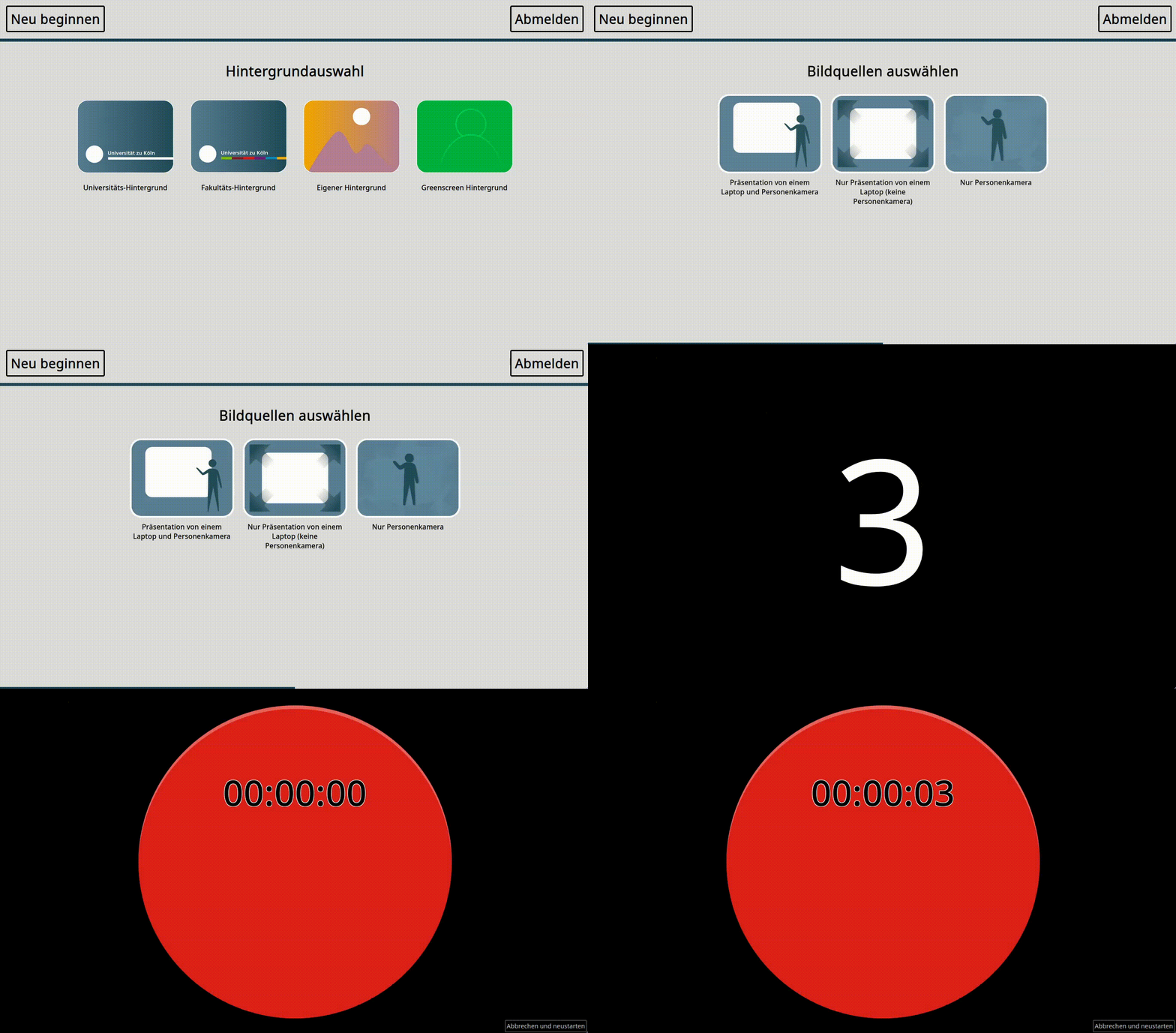
In the studio room, you can first settle in at the table and, if needed, connect your laptop or tablet to prepare for the recording. You will be guided through a short interview on a tablet, during which the desired scenario is determined and then loaded.
At the same time, you’ll see a preview of the recording on a large screen on the opposite wall. Once you’re ready, you can start and stop the recording yourself using the same tablet. After each recording is finished, you’ll have the opportunity to review the result and decide whether to save or delete the recording. You can download the recordings later from the user area of the studio’s web interface.
The animation below illustrates the scenario selection and video recording:
What scenarios are available?
The backgrounds and sources for the scenarios can be combined in various ways. Not all combination options are available in every studio.
When selecting a standard background, you can choose from the following sources:
- Person camera
- Person camera and laptop or document camera
- Laptop or document camera in full screen, no person camera, no Uni design
When selecting your own background, you can choose from the following sources:
- Face camera
- Full-screen person camera, no university design
- Person camera and laptop or document camera
If you select the green background, you can choose from the following sources:
- Full-screen person camera, no university design
In what format will I receive the recorded material?
You can download the finished material here. You will also receive this specific link via email after the recording.
(In OBRS, videos are recorded with audio included; however, the audio track from the downloadable file can subsequently be separated and used for audio podcasts, etc., in an audio editing program. The development team has also programmed an “audio-only” version for exporting the file from the OBRS download area, which becomes available in the download area the next day.)
What should I keep in mind beforehand?
When preparing a presentation, make sure that the presentation has a 16:9 aspect ratio if possible. Otherwise, black bars will be visible on the right and left sides of the image.
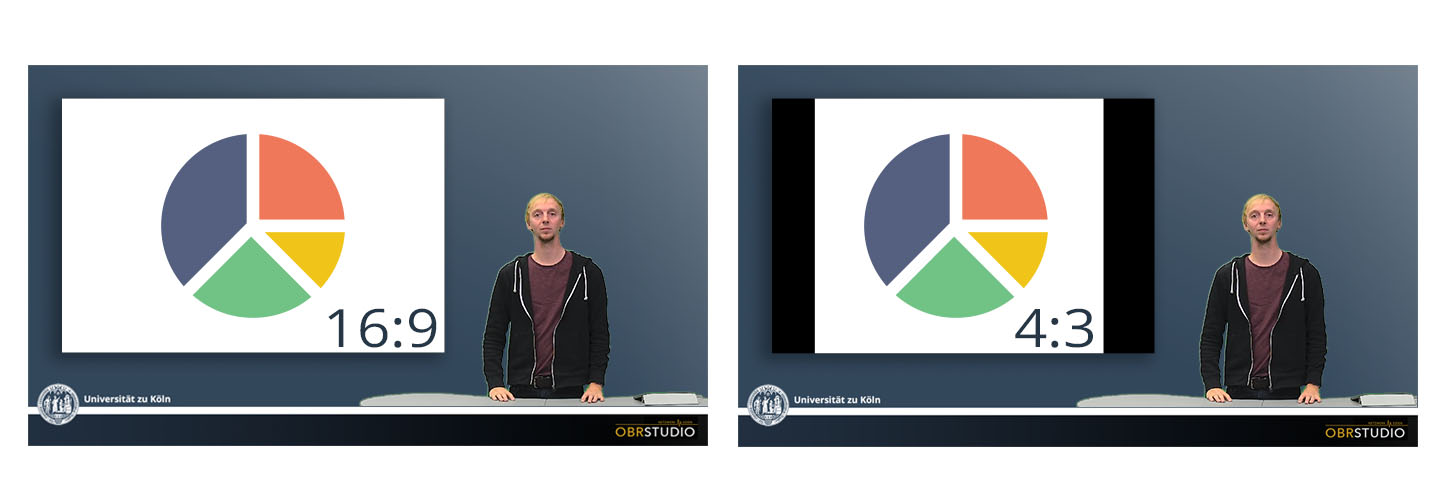
Similarly, when using a standard background within the presentation, a university logo is not required, as it is already integrated into the overall layout.
Do not wear green clothing, as the green background will be digitally removed and replaced with the selected background. Any green clothing will also be removed, and you would appear transparent in that area.
When recording, you should look into the camera below the monitor so you can address the viewer directly. It’s best to test your range of motion in front of the camera before recording.
For educational guidance, please contact our project partners at the ZHD in advance.
How can I book the OBRS?
University of Cologne staff can book the studio through our booking system.
What do I need to bring for the recording?
To play presentations, you can bring your own laptop or tablet with your presentation saved on it. If you don’t have a presentation, you don’t need to bring anything else.
How long should the videos be?
We recommend keeping the videos short and recording them in separate thematic segments. The OBRS is not intended as an alternative to lecture recordings, but rather as a supplement for presenting specific topics.
Do I need to bring adapters to connect my laptop or tablet?
In general, we recommend bringing your own adapters if you have them.
The connection on site is via HDMI. So if your laptop has an HDMI output, you won’t need an adapter. We have the standard adapters (VGA to HDMI, DisplayPort to HDMI, Mini DisplayPort to HDMI, etc.) on site. If you’re unsure which adapter you need, please feel free to contact us in advance.
How is the presentation integrated into the video?
You can imagine the result as being similar to a news broadcast. That is, the presenter is visible alongside the presentation. Alternatively, the presentation can also be integrated as the sole visual source.
Does it have to be a presentation, or can I show other content as well?
The signal output by the connected device is recorded, regardless of the content displayed. Depending on the system settings, the primary image is duplicated or the screen is extended.
Is the studio accessible?
Yes, you can enter the studio in a wheelchair. However, we will need to adjust the camera slightly differently to accommodate wheelchair users. Please briefly note this in the “Reservation Description” field when booking if you would like to be recorded in a wheelchair.
The following video also provides an overview of how the OBRS works:
The OBRS was designed and implemented by Netzwerk Medien (in collaboration with the ZHD) as part of a project to improve digital teaching.